Multi-factor authentication
Parsec supports Multi-factor authentication (MFA) as an optional extra layer of protection for your login.
When enabled, in addition to your usual authentication, Parsec will require a confirmation from a second source in order to login. In practice, you will need to enter a 6-digit code generated by an authenticator application on your phone.
Why enable MFA?
The keys that allow you to login to Parsec are securely stored on your computer. This means that even if your authentication is compromised (for example, someone gains access to your password) your computer is still required to login to Parsec. This is the first layer of protection to your login.
Without MFA, if your computer is stolen, an attacker could potentially attempt to recover your credentials offline, without the Parsec server ever being involved.
With MFA, an extra layer of protection is added: the Parsec server must validate a 6-digit code generated by an authenticator application on your phone before releasing the secret needed to login. This means that a stolen computer is not enough, the attacker would also need access to your authenticator app.
Trade-off: Security benefits and usability
MFA requires a connection to the Parsec server in order to login, this is a trade-off between security benefits and usability:
Security benefit: An attacker who has stolen your computer cannot access your data without also having access to the authenticator app in your phone.
Usability: You can no longer log to your organization while offline. A slow or intermittent connection (e.g. during a train journey) is fine, but extended periods without any connectivity make login impossible.
Note
The server connection is only required during login. Once you are logged-in, you can continue to use Parsec as usual, even if connectivity is lost. You can read and modify files in your workspaces without an active server connection.
How to enable MFA
The following schema briefly explains how MFA setup works.
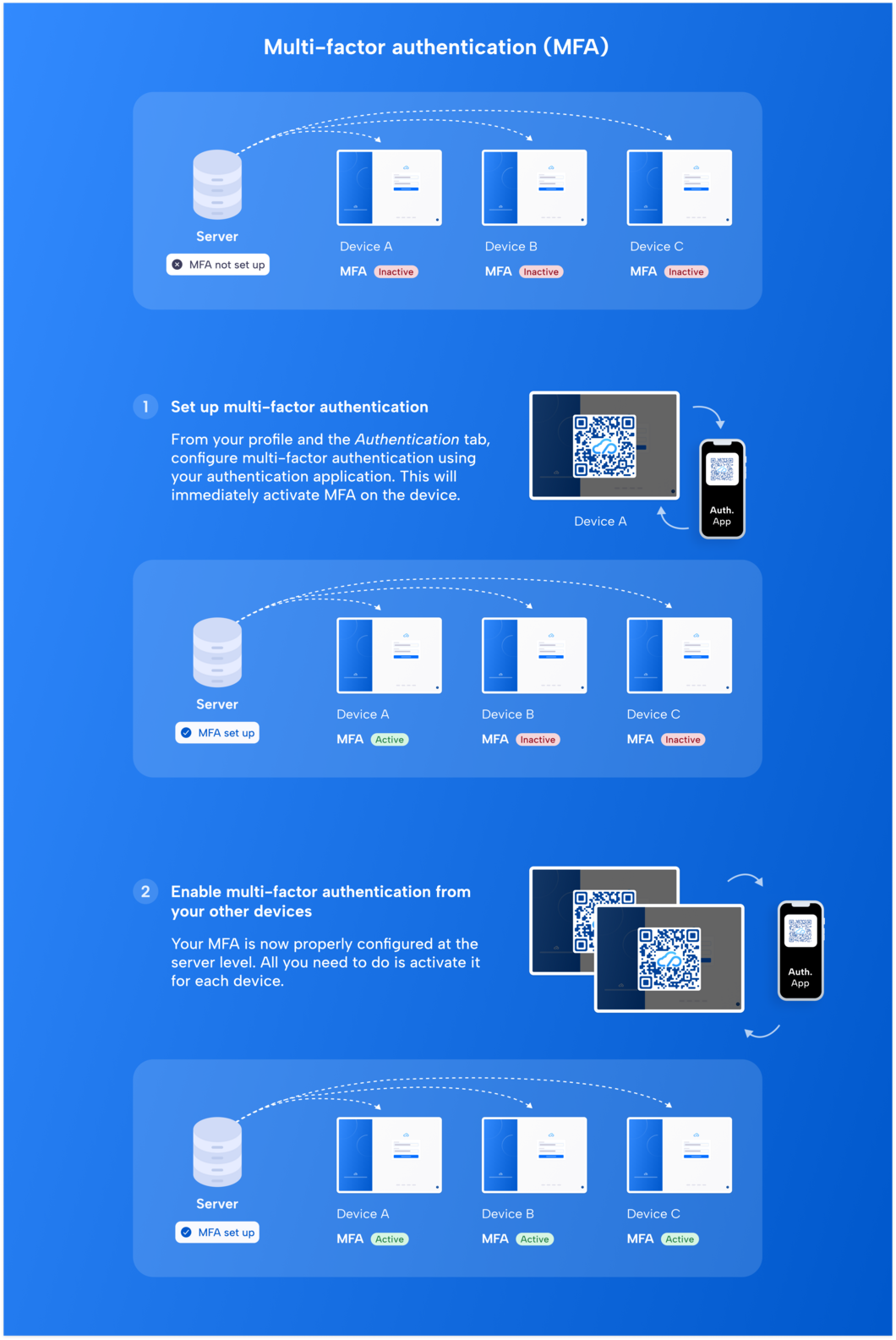
You can enable MFA from your profile page.
Install a TOTP-compatible authenticator app on your phone (such as FreeOTP, Aegis Authenticator, or any other TOTP-compatible authenticator app).
In Parsec, click on your name on the main menu (top-right) and go to your profile settings.
In the MFA section, click Enable MFA to start the setup.
Scan the QR code with your authenticator app (or copy the secret key and paste it in your authenticator app).
Enter the 6-digit code shown in your authenticator app to confirm the setup.
MFA is now active. The next time you log in on this device, Parsec will request a 6-digit code to login.
Caution
Once MFA is set up, the same authenticator entry is used for all devices you protect with MFA in this organization. Do not delete it from your authenticator app, otherwise you will need to request an MFA setup reset to recover access.
Log in with MFA
When MFA is enabled on a device:
Select your organisation in the Parsec login screen.
Parsec request a 6-digit code from your authenticator app.
Enter the code (it changes every 30 seconds, use the current one).
Parsec then asks you to enter your usual credential (eg. password).
You are now logged-in.
Recovering access when the authenticator app is lost
If you lose access to your authenticator app (e.g. lost or replaced phone), you will not be able to log in to any device protected with MFA. In this situation, you will need to request an MFA setup reset from the server administrator.
Please contact an administrator in your organization for assistance.
See MFA setup reset for details on how to the MFA step is reset by the server administrator.
Reset your MFA
Once the server administrator has initiated the reset:
You will receive an email from Parsec with the subject “Your MFA has been reset for <organization>”.
Click the link in the email (or open the link provided by your administrator) to open Parsec and start the MFA reset process.
You will need to scan a new QR code with your authenticator app (on your new phone or a freshly installed app) to re-register the account.
Confirm the setup by entering the 6-digit code shown in the app.
MFA is now reset and you can log in again normally.
Note
The reset only changes the secret shared between your authenticator app and the server. Your existing devices and all your data remain intact, nothing is lost.