Client Deployment
This section describes your options to deploy Parsec client application to your users in order to access your self-hosted instance of Parsec Server.
Parsec client applications
The Parsec client application is available in two flavours:
🖥️ Parsec Desktop App available for Linux, Windows and macOS.
🌐 Parsec Web App compatible with modern browsers such as Firefox or Chrome.
They both provide the same features and user experience, with a few exceptions related to natural platform limitations (e.g. file system mountpoints are not supported by web browsers).
Here are some examples of features that are naturally only available in the desktop app:
Opening your files with software installed on your computer
Accessing your workspace as you would with a regular drive on your computer
Offline login and System Authentication (see Authentication section below)
Note
Parsec CLI is also a client application, although not intended for regular users. With Parsec CLI you can perform certain tasks from the command-line and thus automate your Parsec workflows such as creating workspaces and importing files.
Distribution channels & updates
🖥️ Parsec Desktop App
Parsec Desktop App can be downloaded from the Parsec website for Windows and macOS. For Linux, it is recommended to install it from the Snap Store. See Install Parsec app for more details.
For security reasons, automatic updates are enabled by default. The desktop app checks for updates when launched. If a more recent version is available, and could be downloaded, the user is notified and prompted to install the downloaded version.
Important
Please note that it is currently not possible to disable automatic updates.
Using Parsec Desktop App may therefore disrupt your service if a recently published version is not compatible with the version of your self-hosted Parsec Server.
We do our best to maintain compatibility, but the changes aren’t tested against every possible previous version. If keeping the service up and running is critical for you, please consider providing only the Parsec Web App to your users.
🌐 Parsec Web App
Parsec Web App is enabled and hosted by the Parsec Server itself. The web application is usually hosted in a custom subdomain (such as parsec.your-domain.com) chosen during server deployment.
Users can therefore access the application by entering the URL in a web browser.
The Parsec Web App version is always in sync with the Parsec Server that host it.
Important
This is the recommended application for users to access your self-hosted Parsec server: it avoids any potential disruptions that might result from future releases.
Authentication
Authentication is one of the most critical aspects of Parsec. Understanding how it works is essential for the security of your data.
The device file
To be able to access an Organization in Parsec, the user needs to set up a Device. This is done when the user joins an Organization or, once logged-in, if the user adds new devices to access the same Organization.
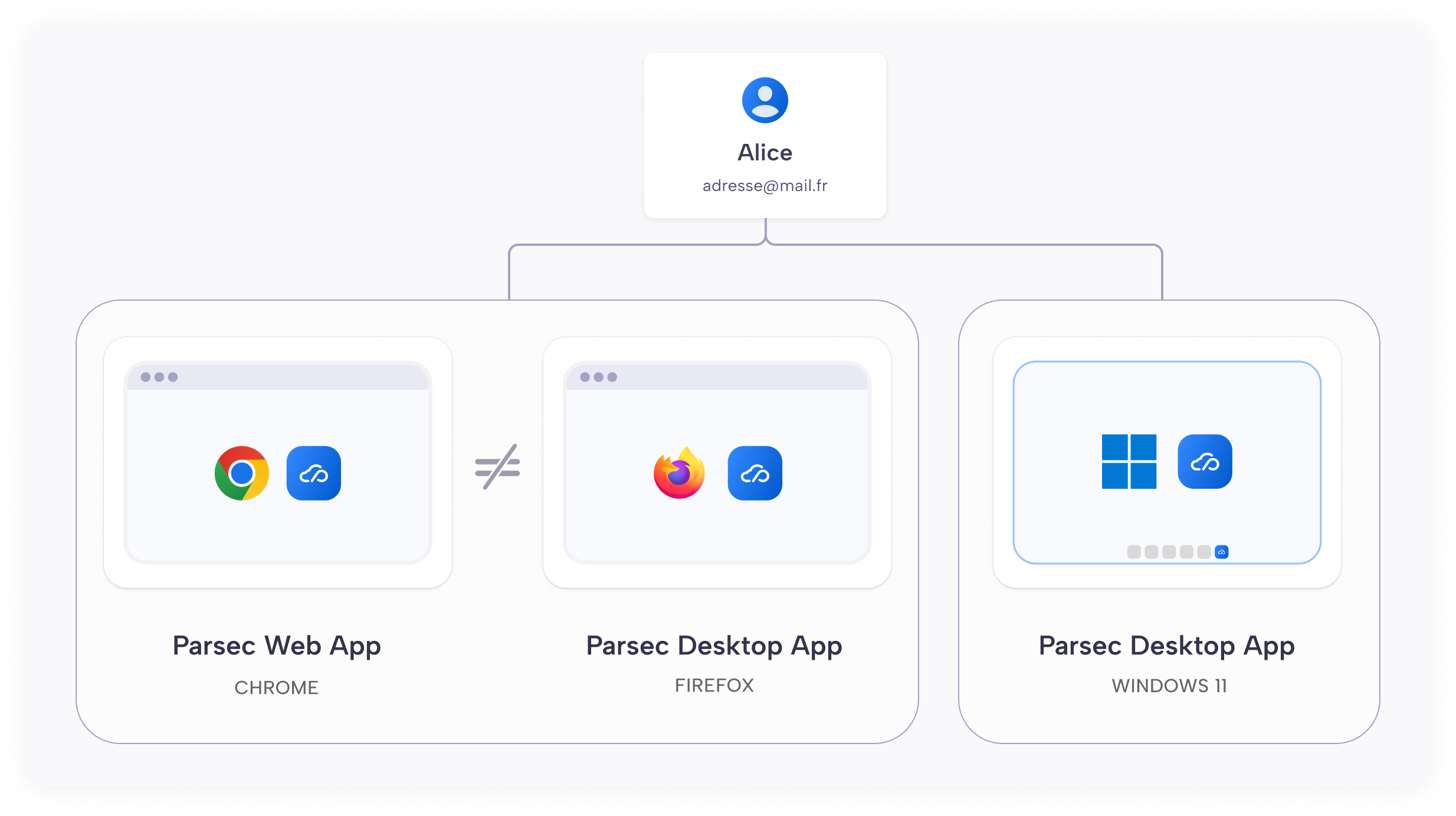
For each device, Parsec creates a device file to store information about the Organization (server URL, organization ID), the User (User ID, Profile, Name, Email), the Device (Device ID, authentication method) and, most importantly, a set of keys allowing to sign, to receive messages and to encrypt data locally.
Important
The device file is encrypted to protect all the sensitive information stored in it.
The mechanism used to encrypt the device file depends on the authentication method selected by the user during device set up.
Supported authentication methods
Parsec supports the following authentication methods:
Password: the device file is protected with a key derived from the user-provided password.
System Authentication: the device file is protected with a key stored at the OS-level credential store (Keychain, Secret Service). Not available on the web app.
SmartCard: The device file is protected with a X.509 certificate from a smart card. A PKI is required in order to issue and validate certificates.
Single sign-on: the devices file is protected with an SSO-based key retrieval via OpenBAO.
MFA (TOTP)
Regardless of the authentication method, users can enable MFA as a secondary layer of protection for the device file.
MFA is based on standard TOTP codes that are generated by an authenticator application from a mobile phone. See Multi-factor authentication for more information.
Offline login
When the user accesses documents in Parsec, data is downloaded and stored encrypted in a local cache (either the file system or the browser storage depending on the app).
Parsec allows to access this data offline, provided that the user is able to authenticate and thus decrypt the local device file. Only data that has been previously downloaded by Parsec is available while offline. This is known as “Offline login”.
The downside of offline login is that it enables offline attacks on the device file: an attacker that is able to access or retrieve the device file is able to perform attempts to break the file encryption.
The following table summarizes which support offline login and their resistance to offline attacks.
Strategy |
Offline login |
Offline attack resistance |
|---|---|---|
Password |
✅ |
Moderate (key stretching) |
Keyring |
✅ |
Low (tied to OS session) |
SmartCard |
✅ |
High |
SSO |
❌ |
High |
Note
When MFA is enabled, offline login is not available because the client application needs to communicate with the Parsec Server during login to verify the TOTP code.
Release schedule
Parsec releases do not follow a fixed schedule. Recent feature releases have been published around every two to three months. We intend to keep up this pace, although we can’t guarantee it.
Patch releases can be published at any time to fix major bugs or security issues.
Privacy
Both desktop and web apps include automatic error reporting to help us improving Parsec.
Error reporting is enabled by default. Users can disable it at any time by going to:
Organizations with data handling policies should inform users about this feature and provide guidance on whether to disable it.