Where to find Parsec logs
Accessing logs from Parsec
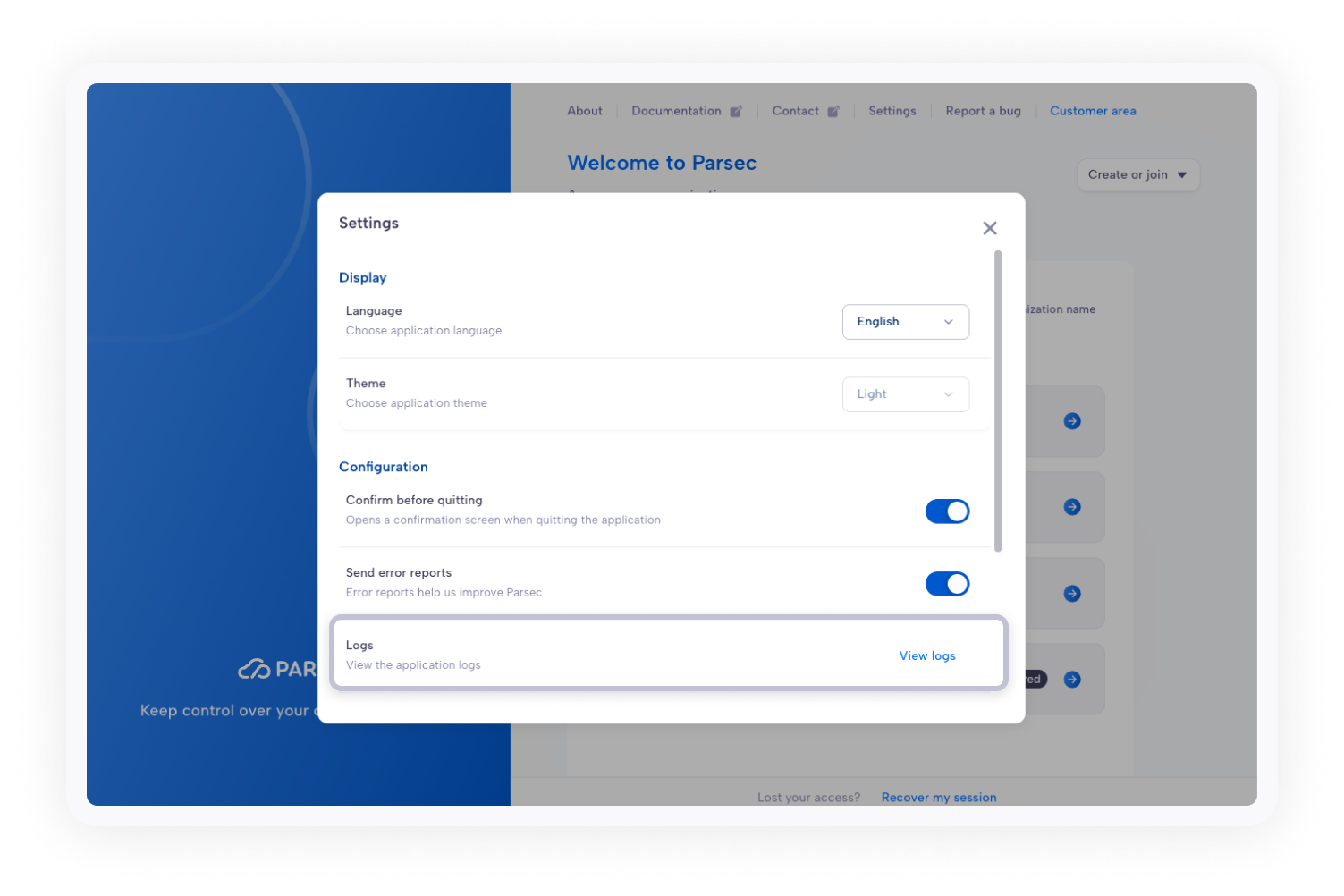
Accessing logs when not logged-in to an organization
Open the
SettingsmenuIn the
Configurationsection, you have the entryLogsClick on
View logsbutton on that entry
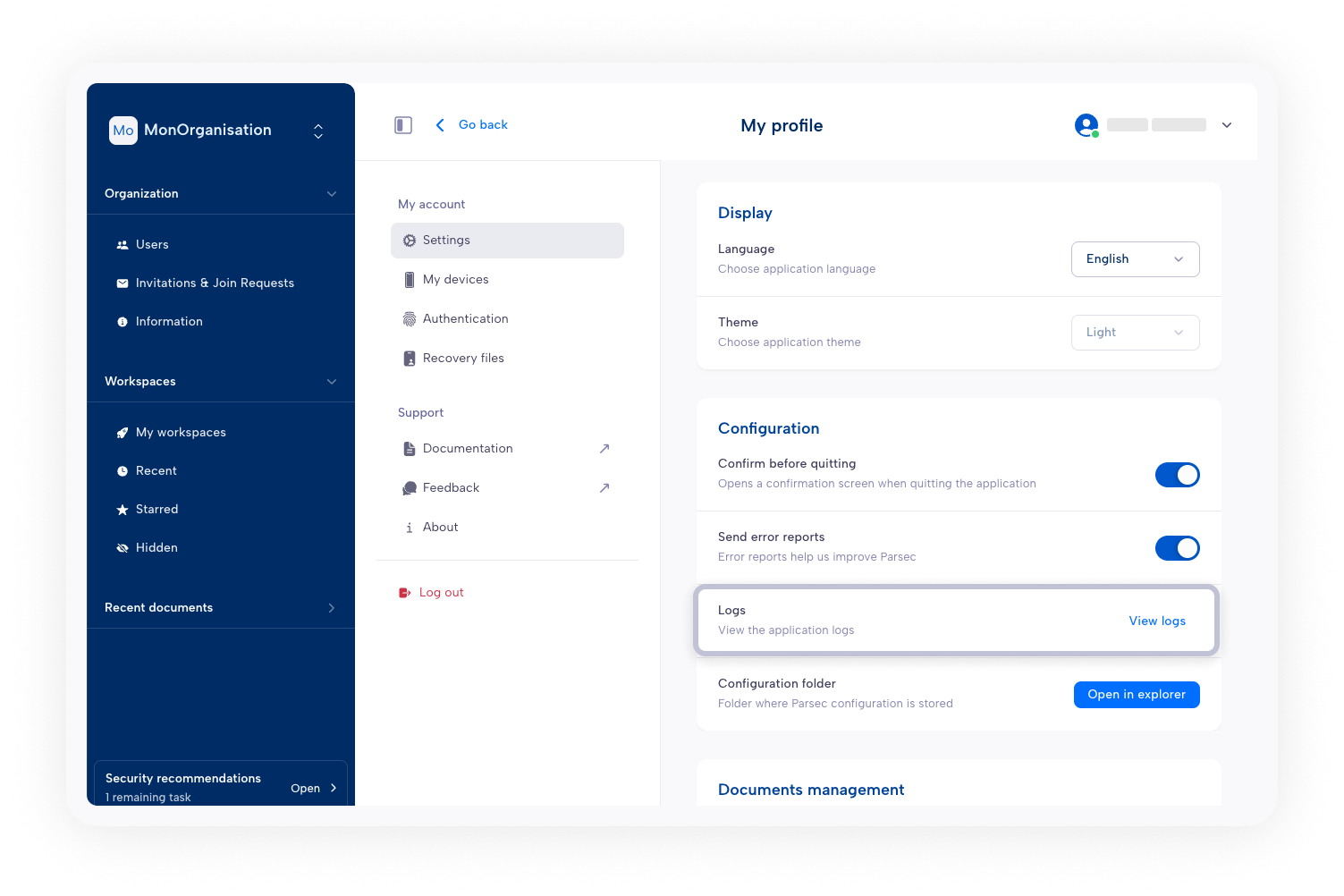
Accessing logs when logged-in to an organization
Click on your username (top right)
Select
SettingsIn the
Configurationsection, you have the entryLogsClick on
View logsbutton on that entry
Log files locations
The desktop application place the log files following this platform matrix:
OS |
Application logs |
Libparsec logs |
|---|---|---|
Windows |
|
|
MacOS |
|
|
Linux |
|
|
Linux with Snap |
|
|
Note
For libparsec logs, the file path is affected by the environment variable PARSEC_RUST_LOG_FILE.
Note
On Linux, if XDG_CONFIG_HOME environment variable is not defined, you can use ~/.config instead.